
What is DNS? A Beginner-Friendly Explanation
Executive Summary
The Domain Name System (DNS) is the Internet’s address book, translating user-friendly domain names (like example.com) into numeric IP addresses that computers use to communicate. In practice, every time you type a website name into your browser or use an app, DNS is working behind the scenes to find the right machine. This article explains DNS in clear, simple language: what it is, how a DNS lookup works step by step, common uses, and why security (like DNSSEC or encrypted DNS) matters. We’ll also cover basic troubleshooting (clearing caches, using nslookup/dig) and best practices for everyday users and small organizations. Finally, we touch on DNS history and governance (how bodies like ICANN and the IETF keep DNS running globally) and current trends in making DNS faster and more private.

What is DNS? (In a Nutshell)
Think of DNS as the Internet’s phonebook or address book. Every device on the Internet has a numeric IP address (for example, 192.0.2.1). These numbers are hard for people to remember, so instead we use easy names like example.com. DNS is the system that maps those names to their IP addresses. ICANN describes DNS as a system that “makes the Internet accessible to human beings” by linking names to numbers. In other words, DNS lets you type a website name instead of an IP address – “icann.org” instead of “192.0.32.7” – and still find the right server on the Internet.
Cloudflare similarly calls DNS the “phonebook of the Internet,” emphasizing that it translates domain names to IP addresses so browsers can load online resources. You can imagine it like looking up a friend’s name in your contacts list to find their phone number. DNS also works like an “address book” for all the world’s websites: when you enter a name, DNS looks up the address and points you to the right place.
How DNS Works: Step by Step
DNS resolution is the process of finding an IP address for a given domain name. Usually this happens in the background in milliseconds. The key steps are:
- User/Client Query: You type a domain (like example.com) into your browser or app. Your computer first checks its local cache (or hosts file) to see if it already knows the IP. If not, it sends the query to a recursive resolver (often provided by your ISP or a public DNS service).
- Recursive Resolver: Think of this as a helpful librarian. The resolver receives the request and, if it doesn’t have the answer cached, starts a series of queries on your behalf. It asks higher-level servers for the answer.
- Root DNS Server: The resolver first asks a root server. Root servers are at the top of DNS’s hierarchy; there are 13 named roots (A through M) worldwide. A root server doesn’t know every address, but it knows which servers handle top-level domains (TLDs). It replies with a referral – for example, “ask the .com servers” if your domain ends in .com.
- TLD Server: Next the resolver contacts the appropriate TLD nameserver (for example, the servers for “.com” or “.org”). The TLD server knows which nameservers are responsible for that particular domain. It replies with the address of the domain’s authoritative nameserver.
- Authoritative DNS Server: Finally, the resolver queries the authoritative server for the specific domain. This server holds the actual DNS records for example.com. It looks up the record (such as the A record for the IP address) and returns it to the resolver.
- Resolver to Client: The recursive resolver now has the IP address. It returns this answer to your computer. Your browser or app can now connect to the IP and load the website.
- Caching: Meanwhile, to speed up future queries, the resolver (and often your computer/browser) caches this result for a certain time (the TTL). That way if you or someone else asks for example.com again soon, the answer can be given quickly without repeating all the steps.
Cloudflare outlines these steps in detail. In an uncached lookup, there are about eight queries: client→resolver→root→TLD→authoritative→resolver→client (with the client finally making an HTTP request to the returned IP). In practice, some steps get skipped if the answer is cached locally or at the resolver.
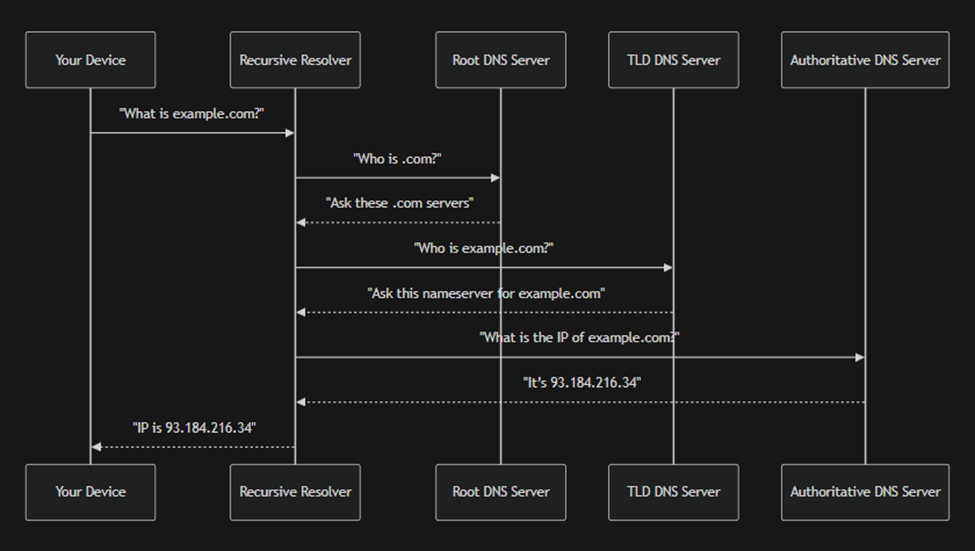
Table: DNS Components and Roles (analogies)
| DNS Component | Role |
| Recursive Resolver (e.g. ISP) | Acts like a librarian: it receives your request and figures out where to find the book (IP). |
| Root Nameserver | Like an index in a library: it doesn’t have the answer itself but points to the right section (TLD servers). |
| TLD Nameserver (.com, .org) | Like a specific book rack: it knows where books for its genre (TLD) are kept and points to the precise location. |
| Authoritative Server | The dictionary or final reference: it contains the definitive answer (the domain’s IP) for that name. |
| Caching | Temporary memory in the resolver or your device: like putting a bookmark in a book so future lookups skip most steps. |
Common DNS Uses
DNS runs virtually every Internet activity that uses a domain name. For example:
· Web Browsing: Every website visit requires a DNS lookup of the domain (like nytimes.com or google.com) to find its server.
· Email: Mail servers rely on DNS MX records to find where to deliver email for a given address. When you send an email to user@example.com, your mail server looks up the mail exchange record for example.com.
· Business Apps and APIs: Applications and services contact servers (for cloud services, APIs, VPNs, etc.) by name, which again uses DNS under the hood.
· Internet-of-Things (IoT): Smart devices (phones, cameras, home assistants) use DNS to connect to their cloud services or peer devices.
· Content Delivery: CDNs (content delivery networks) often use DNS load-balancing, sending users to different IPs based on geography or server load.
· Internal Networks: Companies often run their own DNS for devices within a LAN, resolving names of printers, servers, etc., just like public DNS does for the Internet.
· Custom Domains: Small organizations use DNS to set up subdomains (like blog.company.com) or to point domain names to their web hosting or cloud providers.
In short, almost any time a program or service uses a name (rather than a hard-coded IP), DNS is involved.
Privacy and Security
Because DNS is so fundamental, it can also be a target for attacks or privacy leaks. In its original design, DNS sent queries in the clear and had no built-in authentication. This has led to several issues:
- DNS Spoofing / Cache Poisoning: Attackers can inject fake information into DNS caches. For example, they might trick a resolver into caching a wrong IP for example.com. Then all users who use that resolver would be sent to the wrong site (potentially a malicious one). This is known as cache poisoning or DNS spoofing. Cloudflare explains that DNS cache poisoning “is the act of entering false information into a DNS cache, so that DNS queries return an incorrect response and users are directed to the wrong websites.”. Because early DNS had no verification, malicious parties could forge responses. In fact, Google notes that DNS was “vulnerable to cache poisoning… due to its open design and reliance on UDP”.
- DNSSEC (DNS Security Extensions): DNSSEC was created to address spoofing. It adds cryptographic signatures to DNS records so resolvers can check that a response really came from the true source. In effect, it’s like adding a digital seal on each answer. As Cloudflare puts it, “DNSSEC creates a secure DNS by adding cryptographic signatures to existing DNS records… you can verify that a requested DNS record comes from its authoritative name server and wasn’t altered en-route.”. In practice, with DNSSEC enabled, even if an attacker injects a bogus record, a validating resolver will detect the signature mismatch and ignore it. Google also confirms that DNSSEC “uses digital signatures to authenticate DNS responses, effectively mitigating cache poisoning.”. However, DNSSEC is not yet universally used – as Cloudflare notes, DNSSEC “has not been widely adopted yet.”.
- Encrypted DNS (DoH/DoT): Traditional DNS queries (over port 53) are unencrypted, so your ISP or any on-path observer can see which sites you’re looking up. To protect privacy, modern protocols like DNS over HTTPS (DoH) and DNS over TLS (DoT) have been introduced. These wrap DNS queries in encryption. Cloudflare explains that DoH/DoT “encrypt DNS queries and responses to keep user browsing secure and private.”. In other words, your DNS requests are hidden inside HTTPS or TLS, much like wrapping a postcard in an envelope. For example, Firefox now uses DoH by default to Cloudflare or NextDNS, so others can’t snoop on the domains you visit. Google’s documentation similarly notes that using DoH/DoT “prevents malicious parties, advertisers, ISPs… from being able to interpret the data”.
- Man-in-the-Middle and Censorship: Because DNS is so visible, it has also been used for censorship. Some networks hijack or block DNS queries to block access to certain sites. Secure DNS protocols can help bypass that, though some organizations (like schools or governments) may try to block DoH too.
- DNS Performance Attacks: DNS servers can be overwhelmed by DDoS attacks or used in amplification attacks. DNS software and services employ rate-limiting and secure transports to mitigate these threats. Google’s Public DNS docs emphasize that implementing DNSSEC and encrypted DNS, along with other measures, helps protect against these vulnerabilities.
In short, modern DNS security involves authentication and encryption. DNSSEC (authentication) stops tampering, while DoH/DoT (encryption) stops eavesdropping and makes on-path attacks harder. Users today should prefer DNS services that support these features for better privacy and security.
Performance & Troubleshooting Basics
DNS performance hinges largely on caching. If a record is cached, a query can be answered almost instantly by one server rather than walking the entire chain. Caches live in your browser, operating system, and ISP’s resolver. When something goes wrong – for example, if an old or incorrect record is stuck in cache – you may need to flush (clear) the DNS cache. Common methods include:
· On Windows: Run ipconfig /flushdns in Command Prompt.
· On macOS: Depending on version, use sudo dscacheutil -flushcache or sudo killall -HUP mDNSResponder in Terminal.
· On Linux: The command varies by distro; for example, sudo systemd-resolve –flush-caches or restarting systemd-resolved or dnsmasq.
Flushing forces your system to drop all saved records so that fresh lookups are done.
Diagnostic tools: Use nslookup or dig to check DNS directly. For instance, running

Mightshow:
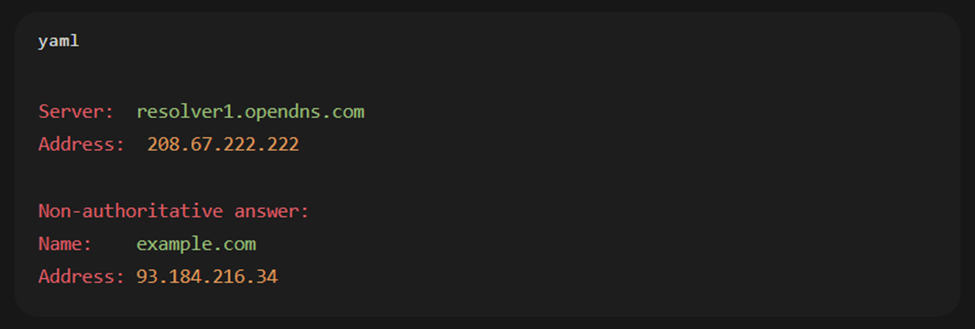
This output indicates the queried server (“resolver1.opendns.com”) and the resolved IP. Similarly, dig example.com (on Linux/Mac) provides detailed query/response info. Such tools help verify that DNS is returning the expected IP and reveal which DNS server answered.
If a website won’t load, you can try switching DNS servers to test whether a particular resolver is the issue (for example, Google’s 8.8.8.8 or Cloudflare’s 1.1.1.1). Also check your /etc/hosts file (or C:\Windows\System32\drivers\etc\hosts) to ensure no overrides are present. Because DNS cascades through multiple servers, one poisoned or misconfigured server in the chain can cause failures, so testing with a known-good public DNS often helps isolate problems. In browsers like Chrome, you can also view the internal DNS cache (e.g. chrome://net-internals/#dns) and flush it if needed.
Best Practices for Users and Small Organizations
· Use Trusted DNS Resolvers: Consider public DNS services like Google Public DNS (8.8.8.8/8.8.4.4), Cloudflare’s 1.1.1.1, or Quad9 (9.9.9.9) which support security features. They often respond faster than default ISP DNS and support DNSSEC/DoH.
· Enable Encrypted DNS: On your devices or router, enable DNS over HTTPS/TLS if possible. Most modern OS/browser combinations support DoH/DoT. This thwarts local eavesdropping and tampering.
· Implement DNSSEC: If you manage a domain, turn on DNSSEC in your registrar or DNS provider. It protects users of your domain from spoofing attacks. Note that all layers (parent zone and hosting provider) must support it for full protection.
· Use Long TTL Wisely: Set sensible TTL (time-to-live) values on DNS records. A longer TTL reduces queries and speeds responses (since records stay cached), but changes to records propagate more slowly. Balance as needed for services that might change IP often.
· Regularly Update DNS Software: For organizations running their own DNS servers (BIND, Unbound, etc.), keep the software up-to-date to patch vulnerabilities (like DNS amplification exploits).
· Monitor for Issues: Logging and monitoring DNS queries can alert you to unusual spikes (possible DDoS) or unusual queries that might indicate a cache poisoning attempt.
· Use DNS-based Filtering: Small businesses often use DNS filtering (via services like OpenDNS or CleanBrowsing) to block malicious or unwanted sites at the DNS level. This is a lightweight security measure to prevent access to phishing or malware domains.
· Plan Redundancy: Have multiple DNS providers or resolvers configured. If one resolver is slow or under attack, the other can still answer queries. For public websites, use multiple authoritative name servers in different data centers.
Following these practices helps ensure DNS stays quick, reliable, and secure.
Brief History and Governance
DNS was introduced in the early 1980s by Paul Mockapetris (RFC 882/883 in 1983, later RFC 1034/1035 in 1987) to replace the old hosts-file system that one kept on each computer. It was quickly adopted as the scalable way to name hosts on the growing Internet. The Internet Engineering Task Force (IETF) maintains DNS standards through RFCs, periodically extending features (like newer record types or DNSSEC in the 2000s).
Meanwhile, governance of the global DNS namespace is handled by ICANN (the Internet Corporation for Assigned Names and Numbers) and IANA (Internet Assigned Numbers Authority). ICANN, established in 1998, coordinates the “unique identifiers” (domain names and IP addresses) worldwide. In their words, “ICANN coordinates these unique identifiers across the world. Without that coordination we wouldn’t have one global Internet.”. This includes managing the root zone of DNS – allocating the 13 root servers (spread across the globe and hosted by different organizations) and overseeing top-level domains (like .com, .org, country codes, etc.). For example, ICANN contracts with registry operators (like Verisign for .com) and accredits domain registrars.
The IETF, on the other hand, is the community that develops the technical specifications (like how the DNS protocol works). So, one way to see it: IETF designs DNS, and ICANN coordinates it.
Over time, DNS has evolved: the introduction of internationalized domain names (IDNs) allows non-English scripts, new generic TLDs have been added (like .app or .blog), and security/privacy extensions have been layered on. Root Zone Key Signing Ceremonies (handled by ICANN’s IANA department) have added DNSSEC trust anchors for all TLDs. In recent years, major browsers and platforms have adopted encrypted DNS (DoH/DoT) to protect users.
Current trends include privacy (encrypted DNS), security (more DNSSEC/DANE adoption), and performance (using anycast and global networks to speed up DNS resolution). Cloud providers now offer DNS as a service (Amazon Route 53, Google Cloud DNS, etc.), and many Internet services rely on DNS-based load balancing and failover. There’s also research into more decentralization and DNS privacy (e.g. Oblivious DNS, blockchain-based naming), but the core idea remains: DNS is the vital directory of the Internet, underpinned by global cooperation through ICANN and IETF.
Conclusion (Author’s Perspective)
DNS is an unsung hero of the Internet. Every time I browse the web, it quietly turns names into numbers and connects me to sites almost instantly. It’s fascinating that such a simple concept – like looking up a name in a phonebook – powers billions of web requests daily. As users and small organizations, we can appreciate DNS by keeping it in mind when things break (knowing to clear a cache or try another DNS), and by taking basic steps to secure it (using DNSSEC, encrypted DNS, or trusted resolvers). In the end, DNS makes the web much easier for all of us to use – just as an address book lets friends connect without remembering long numbers.