
What is an SSL Certificate? Why HTTPS Matters
Executive Summary: An SSL/TLS certificate is a digital credential (often still called an “SSL certificate”) that a trusted authority issues to a website. It contains the site’s public key and identity details, enabling your browser to encrypt data in transit and confirm it’s talking to the real site. In practice, SSL/TLS turns HTTP into HTTPS, ensuring confidentiality, integrity, and authentication of web traffic. Modern web security relies on HTTPS everywhere – search engines now reward encrypted sites and browser warnings push sites to switch. There are different cert types (DV, OV, EV, wildcard, SAN) for different trust needs. Site owners should obtain certificates from a Certificate Authority (free options like Let’s Encrypt or paid CAs), install them with the full certificate chain, and automate renewals (every 1–3 months) to avoid lapses. Common pitfalls include expired or mis-installed certs and weak protocols. Enabling HTTPS enables HTTP/2 (for faster loading) and OCSP stapling (for quicker handshakes). In the US, while no single law mandates HTTPS for all sites, many regulations (e.g. PCI-DSS, HIPAA) strongly encourage encrypting data in transit. The net effect: HTTPS builds user trust, avoids browser “Not Secure” warnings, and guards privacy.
SSL/TLS Basics: What Is an SSL Certificate?
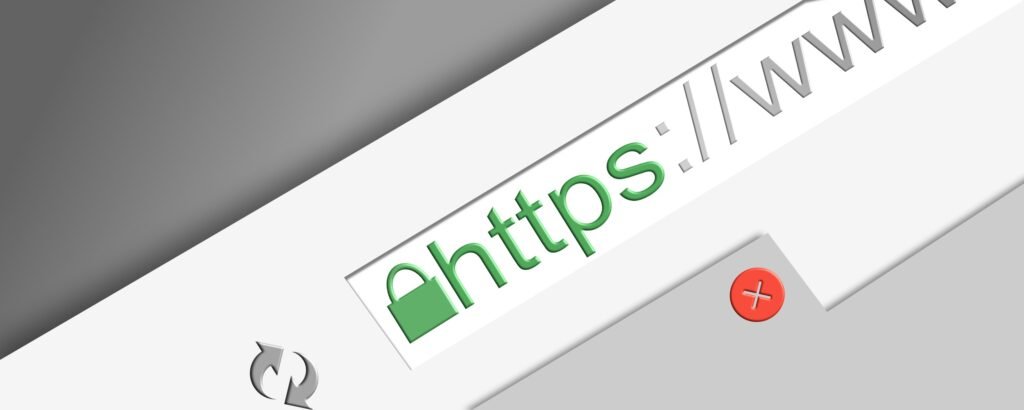
Under the hood, HTTPS is just HTTP over TLS (Transport Layer Security), the modern version of the old SSL protocol. An SSL/TLS certificate is essentially a data file that websites use to enable HTTPS. It contains the site’s domain name(s), its public key, expiration date, and a digital signature from a Certificate Authority (CA). When you visit “https://…” your browser checks that signature against a trusted CA store. In effect, a certificate is like a verified passport for a website: it says “this is example.com, and here’s the public key it will use.” Because the CA has vetted the information (to varying degrees), your browser can trust the identity and encrypt data to the site’s real owner.
The terms SSL and TLS are often used interchangeably. SSL (Secure Sockets Layer) was the original name, but TLS (Transport Layer Security) replaced it years ago. Today, we say “TLS” in protocols and most certificates are TLS certificates, but people still say “SSL certificate” out of habit. In this article we stick with modern terminology (TLS) but note that “SSL certificate” still refers to any X.509 web certificate.
How HTTPS Works (Encryption, Authentication, Integrity)
When you connect to an HTTPS website, your browser and the web server perform a TLS handshake. This handshake achieves three goals:
– Encryption: They agree on a session key to encrypt all data, so eavesdroppers see only random gibberish.
– Authentication: The server proves its identity using its certificate. This prevents man-in-the-middle imposters.
– Integrity: TLS adds message authentication so that if data is altered in transit, it will be detected.
Cloudflare’s learning materials describe the handshake concisely: “the two communicating sides exchange messages to acknowledge each other, verify each other, [and] establish the cryptographic algorithms and session keys”. Put simply, your browser says “Hello, what version of TLS can we use, and which ciphers do you support?” and the server replies “Here’s my TLS version, I choose this cipher, and here’s my certificate.” The browser checks the CA signature on the certificate, then uses the server’s public key (from that cert) to securely agree on a shared session key. Once that is set up, all further data is encrypted with symmetric encryption.
Figure: Simplified HTTPS (TLS) handshake. The browser (Client) sends a ClientHello, the server replies with ServerHello and its certificate. The client then sends a ClientKeyExchange (using the server’s public key) and both sides send ChangeCipherSpec/Finished messages. After this exchange, the secure encrypted session begins.
This process guarantees confidentiality (no one can read the data in between), integrity (tampering breaks cryptographic checks), and authentication (you’re really connected to the genuine site). For example, sensitive web forms (login, credit card) on HTTPS sites are unreadable by attackers on the network. In modern use, HTTPS is effectively mandatory: “As of April 2025, approximately 98% of internet traffic in the U.S. uses HTTPS”, and Google now tags HTTP sites as “not secure” in Chrome. In short, without HTTPS, “everything from login credentials to session cookies is fair game for attackers”.
SSL vs. TLS: A Quick Clarification
You’ll see “SSL/TLS” used in many places. In practice, they refer to the same function today. TLS is the protocol version in use, and it’s backwards-compatible with older SSL. Major browsers and servers all speak TLS 1.2 or 1.3 these days (SSLv3 and below are obsolete). The good news is that every HTTPS certificate that used to be called an “SSL” certificate is still valid under TLS. When you set up HTTPS you are actually using TLS under the hood; “SSL” is just the legacy name.
Certificate Types: DV, OV, EV, Wildcard, and SAN
Not all certificates are equal in how much identity they prove. Broadly, we have:
· Domain Validated (DV): The CA verifies you own/control the domain (via email or DNS) but does not check any organization details. DV certs are issued the fastest, usually free or cheap. Use DV for low-risk sites (blogs, informational sites). They encrypt traffic but don’t assert “who” runs the site.
· Organization Validated (OV): The CA checks domain ownership and verifies basic organization details (business registration, address). The certificate shows the organization name (typically in the cert details, not the URL bar). OV is suitable for corporate websites or services where some trust of the business identity is desired.
· Extended Validation (EV): The strictest level. The CA does an in-depth legal vetting (proves the company is legitimate and behind the site). EV certs used to trigger a green address bar or company name in older browsers. Today most browsers display a simple lock icon, but EV is still a signal used by banks and e-commerce to say “maximum identity assurance”.
Beyond validation level, there are multi-domain certificates:
· Wildcard Certificates: A wildcard cert uses a * in the domain name (e.g. *.example.com) so that it secures all subdomains at one level (www.example.com, mail.example.com, etc). It still undergoes DV/OV/EV vetting on the base domain but then covers any first-level subdomain. Wildcards save effort if you have many subdomains under one domain (e.g. a business with www., shop., mail.).
· SAN / Multi-Domain Certificates: SAN (Subject Alternative Name) certificates let you list multiple different domain names and subdomains inside one certificate. For example, one cert can cover example.com, example.net, api.example.com, etc. This is useful for organizations with several related domains or services. A SAN cert simplifies management (one cert to renew) and is widely supported.
The table below compares these types at a glance:
| Certificate Type | Validation Level | Coverage | Common Use / Notes |
| DV (Domain Validated) | Domain ownership only | Single domain only | Blogs, personal sites; basic trust, encrypts data |
| OV (Organization Validated) | Domain + Org details (name, address) | Single domain + org info | Business websites; medium trust; company listed in cert |
| EV (Extended Validated) | Strict legal vetting (business verified) | Single domain + org name (shown in UI in old browsers) | Banks, e-commerce; highest trust |
| Wildcard | Same as above (DV/OV/EV) on base domain | *.example.com (all 1st-level subdomains of one domain) | E.g. mail.example.com, shop.example.com; reduces cert count |
| SAN / Multi-domain | Same as above (DV/OV/EV) | Multiple specified domains/subdomains | E.g. cover example.com, example.net, api.example.com; simplifies many related domains |
Sources: Certificate authority guides describe DV, OV, EV differences, and SAN usage.
Obtaining and Installing Certificates
To get HTTPS, a site owner must obtain a certificate from a CA. This process usually involves: generating a key pair and CSR (Certificate Signing Request) on your server, submitting it to a CA, passing whatever validation is required, and then installing the issued certificate.
· Let’s Encrypt (Free CA): The most popular free option is Let’s Encrypt (operated by a nonprofit). It issues DV certificates automatically via the ACME protocol. You (or your host) run an ACME client (like Certbot) that proves domain control and fetches the cert. Many hosting providers now have one-click support for Let’s Encrypt, or you can run Certbot on your server. The certificates last 90 days (by design) to encourage automation.
· Paid CAs: For OV/EV or if you need a warranty/insurance, you can pay a company like DigiCert, Sectigo, GlobalSign, etc. After you complete domain or organization verification, the CA issues a cert. They will typically email it to you or let you download it from an account. DigiCert’s knowledge base explains the workflow: “After you create a CSR and purchase a certificate, our Validation team validates… Once validated, we issue your SSL Certificate and send it to you via email. You can also download your SSL Certificate in your DigiCert account.”
Once you have the certificate (and usually one or more intermediate certificates from the CA), you install them on your web server. Most servers (Apache, Nginx, etc.) have documented steps – essentially you configure the server with the certificate, the corresponding private key, and any intermediate certs. It’s crucial to install the full trust chain. If you leave out an intermediate cert, users’ browsers may not recognize the CA, leading to trust errors. As DigiCert notes, “When you install an SSL certificate on a server… you’ll also need to install an intermediate certificate. This intermediate certificate establishes the trust of your SSL certificate by tying it to your Certificate Authority’s root certificate.”
Finally, once HTTPS is working, configure your site to redirect all HTTP traffic to HTTPS and enable HTTP Strict Transport Security (HSTS) so that browsers always use the secure connection.
Renewal and Management Best Practices
Certificates expire (Let’s Encrypt uses 90-day certs; most commercial CAs now issue at most one-year certs). Failing to renew in time leads to service outages (browsers will block the site or warn users). To avoid this:
· Automate Renewal: Use tools or services that renew certificates before they expire. If using Let’s Encrypt on a server, Certbot can auto-renew via a cron job or system timer (it tries renewal twice daily by default). Some cloud hosting (e.g. managed load balancers) offer built-in auto-renewal. Automation prevents “oops, expired” failures.
· Short-Lived Certificates: Use shorter lifetimes (e.g. 90 days) when possible. Shorter certs limit risk if a key is compromised and force regular updates. US government guidance even notes that shorter-lived certs “offer a better security posture” and encourages automating issuance/renewal. Industry trends are moving toward 200-day or even 90-day max lifetimes.
· Monitor Expiration: Keep alerts or dashboards to check upcoming expirations. Tools and managed platforms often send warnings. According to CrowdStrike, expired certs leave you “exposed to a range of both cyber and business risks,” and many tools (or even simple scripts) can monitor expiry dates.
· Maintain the Full Chain: Always ensure intermediates stay valid too. When a CA updates an intermediate, you may need to re-download and install it.
· Use Strong TLS Settings: Disable old SSL/TLS versions (TLS 1.0/1.1) and weak ciphers. Modern compliance standards require TLS 1.2+ with strong cipher suites. Automated scanners or services (e.g. Mozilla’s SSL test) can check your server.
In short, treat your certificates like any other critical infrastructure: plan renewals well before expiry, automate the process, and avoid one-off or manual installs whenever possible.
Common Pitfalls and Misconfigurations
Even with a valid cert, misconfigurations can break security or cause outages. Some common issues are:
· Expired/Revoked Certificates: Simply forgetting to renew will make browsers block your site. CrowdStrike notes that expired certs “no longer offer promised protection” and have caused real outages (e.g. an Azure outage in 2014, and 2020 incidents where GitHub’s CDN cert and Spotify’s cert expired, causing downtime). Always renew before expiration.
· Missing Intermediate (Broken Chain): If the server doesn’t send the full chain, some clients won’t trust the cert. Always configure the intermediate certs as instructed by your CA.
· Name Mismatch: The domain in the browser’s address bar must match a name in the cert (the Common Name or a SAN). A certificate for “www.example.com” won’t secure “example.com” unless listed in the SAN. Mismatches trigger browser errors. Double-check you got the right domain names (including “www” vs non-“www”).
· Weak Protocols/Ciphers: Using deprecated TLS versions (1.0, SSLv3) or weak ciphers (RSA 1024-bit, RC4, MD5, SHA-1) can expose you. Modern TLS 1.2 and 1.3 are safer. Sectigo explains that outdated ciphers allow attacks, and recommends disabling old algorithms.
· HTTP/HTTPS Redirect Issues: If you don’t redirect HTTP to HTTPS properly, or use inconsistent links, users might still see “http” pages or mixed content. Make sure all resources (images, scripts) load over HTTPS to avoid mixed-content warnings. Enforce HTTPS via redirects and HSTS (HTTP Strict Transport Security) in your server config.
· Self-Signed Certificates: Using a self-signed cert on a public website will cause browser errors. Only use certificates signed by a trusted CA for anything customer-facing. (Self-signed certs lack third-party validation and invite MITM risk.)
By following CA/best-practice guidelines and testing your site with SSL checkers, you can avoid these pitfalls. For example, PCI DSS specifically calls for “encrypting transmission of cardholder data across open, public networks,” so these misconfigurations could even violate compliance requirements.
Real-World Impacts: Security and SEO Examples
Putting it all together, HTTPS isn’t just a technical detail – it has real consequences. For instance, expired or missing certificates have caused major outages. CrowdStrike highlights 2020 cases where GitHub’s CDN and Spotify went down because their SSL certs expired. In each case, user traffic was disrupted and trust was shaken, even though the sites themselves were fine – it was the security layer failure. On the other hand, enabling HTTPS has clear benefits.

One big win is SEO and user trust. Google has explicitly said that HTTPS is a ranking signal. Back in 2014 Google gave a small ranking boost to HTTPS pages, and in 2018 Chrome began flagging all non-HTTPS sites as “Not Secure” in the address bar. This shift effectively pressured website owners to convert to HTTPS or suffer SEO and trust penalties. Industry data shows it worked: “As of April 2025, approximately 98% of internet traffic in the U.S. uses HTTPS”. Users expect the padlock – seeing a secure site builds confidence (especially on payment or login pages), while warnings scare them off.
A few illustrative cases: when social engineers or attackers find unencrypted login pages, they can steal cookies or credentials on public Wi-Fi. (Recall the era of “firesheep” in 2010, when grabbing session cookies on coffee-shop Wi-Fi was trivial on HTTP sites.) Migrating to HTTPS thwarts those attacks. For e-commerce sites, showing the browser’s “secure” indicator can improve customer conversion – visitors won’t complete a checkout if the site looks unsafe. And companies handling regulated data (healthcare, finance) have a de facto requirement: transmitting personal data over plaintext networks would likely violate rules like HIPAA’s Security Rule (which mandates “reasonable safeguards” for ePHI) or PCI-DSS encryption mandates.
Finally, enabling TLS is necessary for other modern protocols. HTTP/2, which can significantly speed up page loads (multiplexed streams, header compression), is only supported by browsers over TLS. That means an HTTPS site can load faster and use fewer connections than its HTTP counterpart. Additionally, enabling OCSP stapling (where the server sends proof of certificate validity in the handshake) can give up to a ~30% performance boost in TLS handshakes. In short, HTTPS is key not just for security but for performance and modern features.
Performance Considerations
Using TLS does add some overhead (initial handshake, encryption CPU), but modern improvements mostly offset that. As noted, TLS 1.3 greatly reduces handshake time: it moves from a two-round-trip exchange (in TLS 1.2) to a one-round-trip exchange. That means faster initial loads for repeat visitors (zero-RTT resumption is also possible) and stronger cryptography (many old ciphers removed). OCSP stapling (mentioned above) also cuts out extra network requests for revocation checks.
Most performance studies today find that the benefits of HTTP/2 (over HTTPS) and TLS 1.3 outweigh any costs. In fact, Google’s Chrome and other browsers implement TLS hardware acceleration where possible. The bottom line: properly configured HTTPS can be as fast or faster than old HTTP, especially once HTTP/2 is enabled.
Legal and Privacy Implications (US)
In the United States, data-in-transit encryption is widely recognized as a best practice and often an expectation under various laws, though not always spelled out explicitly. For example, PCI-DSS (a de facto standard for any business handling credit cards) requires encrypting cardholder data over public networks. HIPAA’s Security Rule expects covered entities to protect ePHI “confidentiality and integrity” – while it doesn’t say “you must use TLS,” failing to encrypt sensitive health data in transit would be viewed as lax compliance. The FTC has even taken action in cases where companies “must take reasonable steps to secure [consumer] data,” implying encryption for internet transmission.
Government guidelines further emphasize HTTPS. The US Federal “HTTPS-Only Standard” (for federal sites) explicitly recommends short-lived certs and automation and notes there is no mandate to use only specific CAs – any publicly trusted CA meeting baseline requirements (as defined by the CA/Browser Forum and NIST) is acceptable. In practice, that means a US website owner can choose Let’s Encrypt or any commercial CA without legal issue; what matters is following industry security standards. Regulators may review whether HTTPS was enforced (for example, data breach regulations often consider “encryption of data at rest or in transit” as strong mitigation), so using TLS can even help in legal defense if breaches occur. In short, while there’s no single US law that outright bans non-HTTPS sites, using HTTPS is effectively required by numerous “reasonable security practices” expected by law and guidance.
Checklist for Website Owners
To summarize, here is a brief step-by-step checklist for deploying and maintaining HTTPS on your site:
1. Inventory Domains/Subdomains: List every hostname users should reach (e.g. example.com, www.example.com, shop.example.com).
2. Choose Certificate Type: Decide DV vs OV vs EV based on trust needs, and whether you need wildcard or SAN (multi-domain) coverage for subdomains.
3. Select a CA: Use Let’s Encrypt for free DV certs (easy automation) or a paid CA (DigiCert, Sectigo, etc.) if you need OV/EV or support.
4. Generate a CSR & Key: On your server, create a private key and CSR. (Keep the key secure – do not share it.)
5. Validate and Obtain Cert: Submit the CSR to the CA. Complete domain validation (via email, DNS, or HTTP proof). The CA will issue your certificate files.
6. Install Certificate on Server: Upload the certificate, private key, and any intermediate certs to your web server. Configure your server (Apache, Nginx, etc.) according to the CA’s instructions.
7. Configure HTTPS: Ensure your web server listens on port 443 and that all HTTP traffic (port 80) redirects to HTTPS. Enable strong TLS protocols (1.2 and 1.3) and disable old versions.
8. Enable Enhancements: Turn on HTTP/2 (most servers do this automatically once TLS is enabled). Enable OCSP stapling. Add HSTS headers to tell browsers to always use HTTPS.
9. Test Your Setup: Use tools like SSL Labs’ SSL Test to verify there are no obvious issues (chain errors, weak ciphers, etc.). Check that your site does not serve mixed content (https page calling http resources).
10. Automate Renewal and Monitoring: Set up a cron job or use a managed service to renew your certs (e.g. Certbot for Let’s Encrypt). Monitor expiration dates. Aim to renew at least 30 days before expiry. Test your renewal process regularly.
Following this checklist helps avoid the common failures (name mismatches, expired certs, missing intermediates, weak protocols) that can break HTTPS. Remember: an HTTPS site isn’t “done” once it’s live – maintain it as an ongoing responsibility.
By understanding SSL/TLS, choosing the right certificate, and following best practices, you turn that padlock in your browser from just a symbol into real protection for your users and data.